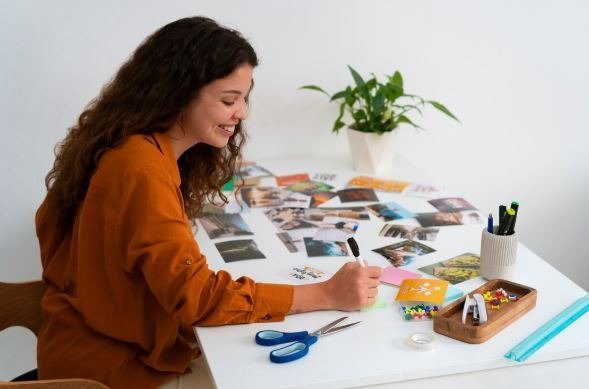
You have hundreds of photos sitting on your phone and no idea how to pull them together into something worth sharing. Whether you want to commemorate a birthday, recap a vacation, or put together a post for social media, photo collages are one of the fastest ways to tell a visual story in a single frame. The good news is that you do not need to be a graphic designer, know anything about software, or spend a single dollar to create something that looks polished and professional. Today’s best online collage tools are built specifically for people like you, and getting started takes less time than you might think.
What Makes a Collage Tool Beginner-Friendly
Not all collage makers are created equal. Some are designed for professional creatives with hours to spend on a project. Others are built for everyday people who want good results fast, without a steep learning curve. When you are evaluating any tool for making photo collages, look for a few key qualities that separate the approachable options from everything else.
The most important feature is a template library. Pre-built layouts give you a head start so you are not staring at a blank canvas wondering where to put your photos. A good tool will offer a range of layouts, from simple two- or three-photo grids to more dynamic arrangements that mix sizes and orientations.
Drag-and-drop functionality matters just as much. You should be able to click on a photo, move it where you want it, and resize or swap it out without needing a tutorial. If a tool requires you to navigate complex menus just to change a single image, it is going to slow you down. The best beginner tools keep every action within one or two clicks.
Finally, look for tools that let you download or share your finished collage in a format that works for your needs. Whether you want a high-resolution file for printing or a compressed image ready for social media, the export options should be clear and simple.
Tips for Creating Engaging Photo Collages as a Beginner
1. Start With a Theme Before You Pick Your Photos
Before you even open a collage tool, take a few minutes to decide what story you want to tell. Are these photos from a weekend trip? A birthday celebration? A year-in-review? Having a theme helps you choose photos that belong together and makes your collage feel intentional rather than random. A focused collection of eight to twelve strong images will always look better than a jumbled assortment of thirty.
Themes also guide layout decisions. A timeline-style event, like a graduation or wedding, works well in a grid that flows left to right. A mood-based collection, like a travel series or nature shoot, might look better in an asymmetrical or freeform arrangement. Thinking about story first saves you significant time once you start designing.
2. Choose Photos With Variety in Composition
One of the most common beginner mistakes is loading a collage with photos that all look the same. If every image is a straight-on shot of people standing and smiling, the final result can feel flat. Try to mix close-up shots with wider scenes, candid moments with posed ones, and landscape-oriented images with portrait-oriented ones.
Visual variety creates energy and keeps the eye moving across the collage. It also makes each individual photo more interesting when placed next to something different. Before you start building, lay out your candidate images and ask yourself whether the selection feels visually balanced. If they all look alike, swap a few out.
3. Use a Template to Get Started Quickly
If you are new to collage making, starting from a blank canvas is rarely the best approach. Templates are designed by professionals to look great right out of the box, and all you have to do is swap in your own photos. This approach cuts your design time dramatically and removes the guesswork around spacing, alignment, and layout proportions.
Most beginner-friendly tools offer dozens or even hundreds of templates organized by theme or use case, such as family photos, travel, events, or social media. Browse through a few before settling on one. The goal is to find a layout that feels close to what you have in mind, then customize from there.
4. Keep Your Color Palette Consistent
A collage that uses too many competing colors can feel chaotic, even if the individual photos are great. When you are adding text, borders, backgrounds, or decorative elements, try to stick to two or three colors that complement the tones already present in your photos.
If your photos lean warm, with lots of golden light or rich earth tones, lean into that warmth with your design choices. If your photos are cool and airy, keep backgrounds and accents light and minimal. Consistency in color is one of the fastest ways to make a beginner-made collage look like it was professionally designed.
5. Use Borders and Spacing Strategically
The spacing between photos, often called gutters or borders, has a bigger impact on the overall feel of a collage than most beginners realize. Thin or zero spacing creates a tight, modern look where images feel connected. Wider spacing gives each photo room to breathe and works well for cleaner, more editorial styles.
Experiment with both approaches before settling on one. Many tools let you adjust border width with a simple slider. As a general rule, if your photos are busy or colorful, a little extra space between them helps prevent visual overload. If your photos are minimal or share a common background tone, tighter spacing can create a sleek, cohesive look.
6. Add Text Sparingly and Purposefully
Text can elevate a collage by giving it context, personality, or a title. But it can also clutter a design very quickly if used without restraint. As a beginner, a good rule of thumb is to use text only when it genuinely adds something the photos alone cannot communicate.
A short caption, a date, a name, or a single meaningful phrase can do a lot of work without overwhelming the visual content. Choose fonts that are easy to read and avoid stacking multiple font styles in the same collage. When in doubt, one font in two sizes, such as a larger headline and a smaller caption, is more than enough for most beginner projects.
7. Try the Remove Background Feature for a Scrapbook Effect
Many modern collage tools include a remove background option that lets you cut subjects out of their original photos and layer them over new backgrounds or other images. This technique, sometimes called a cutout or scrapbook effect, adds depth and personality to collages without requiring any technical editing skills.
It works especially well for portrait photos, product images, or any shot where the subject is clearly defined against a simpler background. Try placing a cutout photo over a textured background, a solid color, or even another photo in your collage for a layered look that feels handcrafted.
8. How to Make Your First Collage With Adobe Express
If you want to go from zero to finished collage in under ten minutes, the collage creator from Adobe Express is a practical place to start. Here is how the process works from beginning to end.
Start by navigating to the tool and selecting a template from the library. Templates are organized by style and purpose, so you can quickly filter to something that fits your project. Once you select a layout, click into any photo placeholder and upload an image from your device or choose from Adobe’s built-in stock photo library if you need to fill a gap. Photos drop directly into the grid, and you can drag to reposition, crop to fit, or swap them out at any point.
From there, use the Layout tool to switch the grid orientation if needed, then explore the design panel on the left to add text, icons, or stickers. Adobe Express also includes a filter menu that lets you apply photo enhancements directly to individual images within the collage, no separate editing app required. When your collage is ready, click Download to save it as an image file, or export it as an animated MP4 if you added motion effects. The whole process is browser-based, free to use, and does not require you to create an account to get started.
9. Use Animation to Make Social Media Collages Stand Out
Static collages are great for printing or sharing in a message, but if you are designing something for social media, adding a simple animation can dramatically increase engagement. Many beginner tools now include animation presets that apply movement to your photos or text with a single click.
You do not need to animate everything. Even applying a subtle fade-in or slide effect to just one element in your collage can give it energy without feeling overdone. When exporting an animated collage for social media, look for an MP4 or GIF option. These formats are widely supported across most platforms and play automatically in feeds.
10. Resize Your Collage for the Platform You Are Posting To
One finished collage design can serve multiple purposes if you take a few extra seconds to resize it before downloading. Most beginner-friendly tools include preset sizing options for common platforms such as Instagram posts, Instagram Stories, Facebook covers, and standard print sizes.
Resizing matters because a square collage that looks great as a post may get awkwardly cropped when used as a Story. Taking a moment to export the same design in the right dimensions for each platform ensures your collage always looks exactly the way you intended, regardless of where it lands.
Frequently Asked Questions
Do I need to create an account to use a free online collage maker?
Most free collage tools allow you to start designing immediately without signing up, which is ideal if you want to jump in and experiment before committing. However, creating a free account is usually worth it once you decide on a tool you like. Accounts typically unlock the ability to save your work in progress, access a broader template library, and return to previous projects for editing. If you are making collages for an ongoing project, such as a monthly family recap or regular social media content, having saved access to your previous work saves meaningful time.
How many photos should I include in a collage?
There is no single right answer, but a practical starting point for most beginners is somewhere between four and twelve photos. Fewer than four photos can feel sparse unless the layout is intentionally minimalist, while more than twelve can make a collage feel busy and hard to read at a glance. The sweet spot depends on the layout you choose and the size of each photo panel. Larger panels showcase individual images well, so a four- or six-photo grid works beautifully. Smaller, tighter grids can accommodate more photos while maintaining visual order. The most important test is whether each photo is clearly visible and contributes to the overall story.
Can I print a collage I make online?
Yes, and this is one of the most satisfying uses of a digital collage. Before downloading for print, make sure you are exporting at the highest available resolution, typically listed as a high-quality PNG or JPG option. Standard print sizes like 4×6, 5×7, or 8×10 inches work well for home printers or photo print services. If you are ordering prints through a third-party service, confirm the minimum resolution requirements before uploading your file. For organizing and storing your original photos before building a print-quality collage, Google Photos is a useful free tool that automatically backs up your camera roll, keeps images organized by date and location, and lets you download originals at full resolution when you are ready to use them.
What is the difference between a photo grid and a photo collage?
A photo grid is a specific type of collage where images are arranged in uniform, evenly spaced rows and columns, similar to a tiled pattern. It is clean, structured, and easy to create. A photo collage is a broader term that includes grids but also encompasses freeform arrangements, overlapping images, mixed sizes, scrapbook-style layouts, and designs that combine photos with text, illustrations, or decorative elements. Grids are great when you want a polished, organized look with minimal effort. Freeform collages offer more personality and creative flexibility, though they may take slightly longer to arrange since there is no rigid structure guiding your placement.
Can I make a collage on my phone, or do I need a desktop computer?
You can absolutely make a great collage on your phone. Most of the leading beginner-friendly tools are either available as mobile apps or have browser experiences that work smoothly on a phone screen. Mobile collage creation is especially convenient because your photos are already right there on your device, making it easy to upload images without any additional steps. The main advantage of using a desktop or laptop is screen size, which gives you a clearer view of your layout and makes it easier to fine-tune small details like text placement or border adjustments. For quick projects and social media content, a phone is more than sufficient. For print-quality or more complex collages, a larger screen tends to make the process easier.
Putting It All Together
Photo collages do not have to be complicated, and creating one that looks genuinely great is well within reach even if you have never touched a design tool before. The key is starting with a clear theme, choosing photos that work together visually, and leaning on templates to handle the heavy lifting of layout and spacing. From there, small decisions about color, text, and finishing touches are what take a basic collage to something you are actually proud to share.
The tools available today have removed nearly every barrier that once made collage design feel intimidating. Whether you are putting together a keepsake for a family member, building content for social media, or just having fun with your favorite photos, you have everything you need to get started right now. Pick a layout, drop in your photos, and see what you can make in the next ten minutes.